
Custom domains
You can serve a deployment target on your own domain, such as www.example.com. You claim the domain for your project, add two DNS records to prove it’s yours, and a TLS certificate is issued for you. You don’t need to contact support.
A domain belongs to one project at a time. Only that project can deploy to it.
Before you begin
Section titled “Before you begin”You need:
- A project with a deployment target. See Workloads.
- Access to your domain’s DNS settings, at your registrar or DNS provider.
Set up a domain
Section titled “Set up a domain”1. Add the domain to your deployment target
Section titled “1. Add the domain to your deployment target”In the portal, open your project, open the deployment target, and enter the domain in its Domain field, for example www.example.com. Save.
Enter the hostname only: no https://, no path, no port. Wildcards such as *.example.com aren’t supported.
2. Claim the domain
Section titled “2. Claim the domain”Open the deployment target’s drawer. A Custom domain section now appears. Select Claim www.example.com.
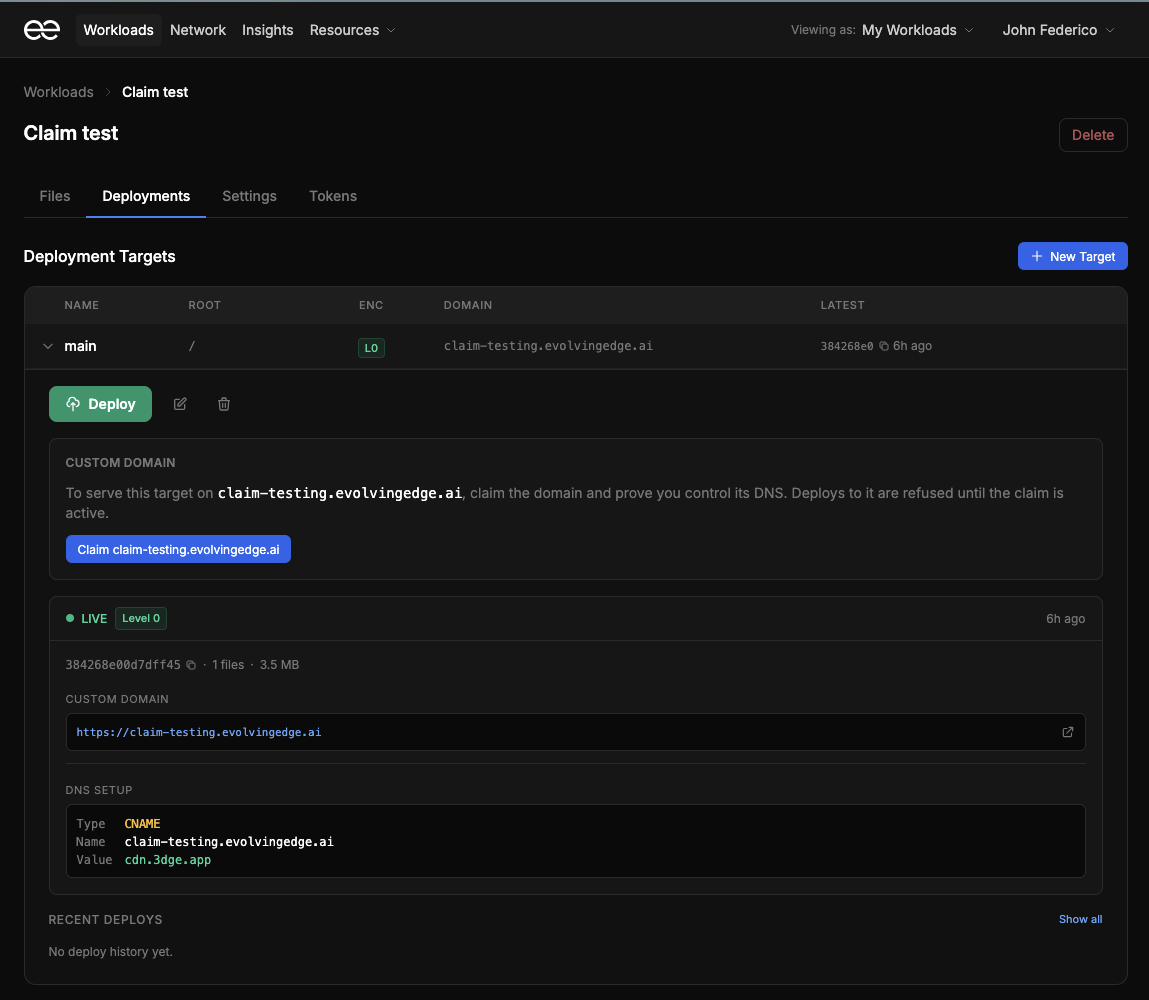
The section shows two DNS records to add.
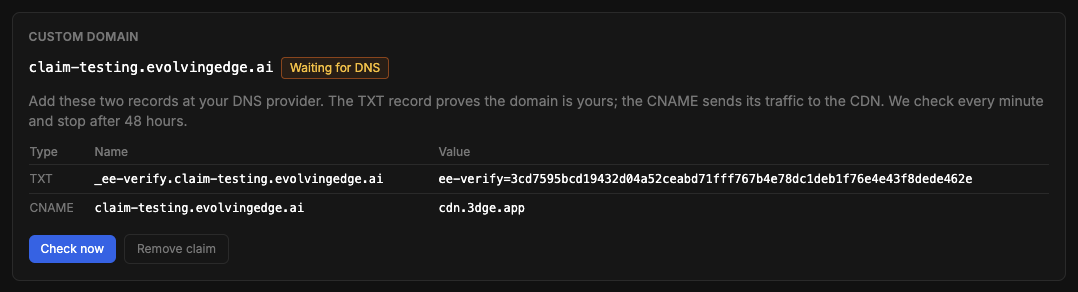
3. Add the two DNS records
Section titled “3. Add the two DNS records”At your DNS provider, add both records exactly as the portal shows them:
| Type | Name | Value | What it’s for |
|---|---|---|---|
| TXT | _ee-verify.www.example.com |
ee-verify=… (a code unique to your claim) |
Proves you control the domain |
| CNAME | www.example.com |
cdn.3dge.app |
Sends your visitors to the network |
Two things commonly go wrong here:
- Your provider may add the domain for you. Many DNS providers want only the part before your domain in the Name field:
_ee-verify.wwwandwww, not the full names. If a record doesn’t verify, check whether your provider has doubled the domain (_ee-verify.www.example.com.example.com). - Copy the whole TXT value, including the
ee-verify=at the start.
4. Wait for the check
Section titled “4. Wait for the check”The status shows Waiting for DNS. The domain is checked once a minute, and new DNS records can take a while to become visible, depending on your provider. Select Check now to check straight away.
You have 48 hours to add the records. After that the claim fails, and you can claim the domain again.
5. The certificate is issued
Section titled “5. The certificate is issued”Once the TXT record is found, the status changes to Issuing certificate. This usually takes a few minutes. You don’t need to do anything.

When the status is Active, the domain is ready.

6. Deploy
Section titled “6. Deploy”Deploy your target as usual, from the portal or with the command line. Your site is served on your domain, over HTTPS. The domain always serves the target’s most recent deploy.
Until the claim is active, deploys to the domain are refused.
What each status means
Section titled “What each status means”| Status | Meaning | What to do |
|---|---|---|
| Waiting for DNS | The TXT record hasn’t been found yet | Add the records, then wait or select Check now |
| Verified | The TXT record was found | Nothing. The certificate is requested next |
| Issuing certificate | The certificate is being issued | Nothing, unless a message appears below the status |
| Active | The domain is yours and ready to serve | Deploy |
| Failed | The records weren’t found within 48 hours, or the certificate couldn’t be issued | Read the reason shown, fix it, and claim again |
| Removing, Removed | The claim is being, or has been, removed | Claim again if you still want the domain |
Keep the TXT record in place
Section titled “Keep the TXT record in place”Leave the TXT record where it is after the domain is active. It’s checked from time to time. If it disappears, your domain keeps working, but the portal shows a warning until the record is back.
Root domains
Section titled “Root domains”A root domain, such as example.com with nothing in front of it, can’t have a CNAME record under the DNS rules. You have two options:
- Use a provider that supports it. Some DNS providers offer a record that behaves like a CNAME at the root, called ALIAS, ANAME or CNAME flattening. Point it at
cdn.3dge.app. Cloudflare does this automatically when you add a CNAME at the root. - Use
www, and redirect the root to it with your registrar’s or DNS provider’s forwarding feature.
Cloudflare and other DNS proxies
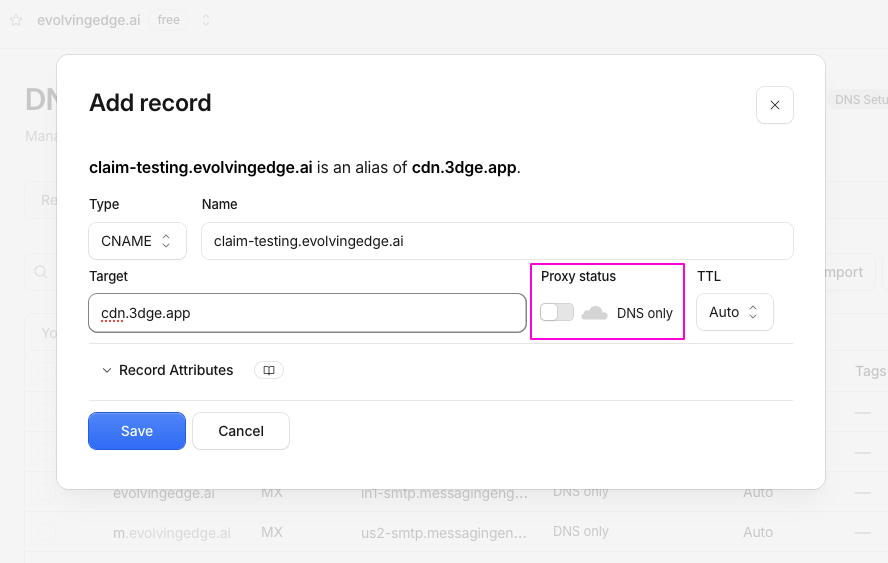
Section titled “Cloudflare and other DNS proxies”If your DNS provider can route traffic through its own network, as Cloudflare’s proxy (the orange cloud) does, turn that off for these records. Set them to DNS only. The certificate can’t be issued or renewed while another service sits in front of your domain.
In Cloudflare, switch Proxy status off when you add the CNAME, so it reads DNS only:
From the command line
Section titled “From the command line”You can claim a domain without the portal, using the ee-domain command in the ee-cdn-cli package:
export EE_CDN_TOKEN=<your deploy token>npx -p @evolving-edge/ee-cdn-cli ee-domain claim www.example.com --project proj_abc123 --waitIt prints the same two records, then checks until the domain is active. Use a deploy token scoped to the project.
Removing a domain, or moving it to another project
Section titled “Removing a domain, or moving it to another project”To stop using a domain, select Remove claim in the Custom domain section. Its certificate is deleted, and deploys to the domain are refused until it’s claimed again.
The status shows Removing while the certificate is deleted:

It then changes to Removed, with a button to claim the domain again:

To move a domain to a different project, remove the claim in the first project, then claim it in the second. The second project can claim it straight away.
If a claim fails
Section titled “If a claim fails”A claim fails if the TXT record isn’t found within 48 hours, or if the certificate can’t be issued. The reason is shown under the status.
Fix the cause, then select Claim again. The project that held a failed or removed claim has to wait 48 hours before claiming the same domain again, and the portal tells you when that wait ends. Any other project can claim the domain immediately, so a domain can never be held by someone who doesn’t control its DNS.
Troubleshooting
Section titled “Troubleshooting”| What you see | What to check |
|---|---|
| Waiting for DNS for a long time | Look up the record yourself: dig +short TXT _ee-verify.www.example.com. If nothing comes back, the record isn’t published yet, or its name is wrong (see step 3). |
| “Claimed by another project” | The domain is already claimed. If it’s claimed in another of your own projects, remove it there first. If it should be yours and isn’t, contact Customer Support. |
| A deploy is refused for the domain | The claim isn’t Active yet, or the domain is claimed by a different project than the one you’re deploying from. |
| Issuing certificate doesn’t finish | Check the CNAME points at cdn.3dge.app, and that no proxy is in front of it. Any message from the certificate provider appears under the status. |
| A warning on an active domain | The TXT record has been removed. Add it back. |
| You can’t start another claim | A project can have up to 10 claims waiting for DNS at once. Finish or remove one. |
Limits
Section titled “Limits”- One project per domain. A domain can be claimed by only one project at a time.
- 48 hours to add the DNS records before a claim fails.
- 48 hours before the same project can re-claim a domain it let fail or removed.
- 10 claims waiting for DNS per project at once.
- No wildcards. Each hostname is claimed separately:
www.example.comandblog.example.comare two claims. - Our own domains can’t be claimed. For an address on our domain, use the aliases every deploy gets.